Note
This tutorial is a continuation of Creating a Dockstore Account. Please complete the tutorial prior to doing this one.
Tools
Tutorial Goals
- Register a tool on Dockstore
- Learn about Quick registration vs Manual Registration
- Publish your tool
Register Your Tool in Dockstore
Now that you have your Dockerfile, Dockstore.cwl and/or
Dockstore.wdl in GitHub, have setup Quay.io to automatically build
your Docker image, and have linked your accounts to Dockstore, it is
time to register your tool. This tutorial will assume you are using CWL
and/or WDL. Currently, Nextflow is not supported for tools on Dockstore.
Quick Registration via the Web UI
In the authenticated Web UI, navigate to ‘My Tools’ to begin managing Docker images imported through your linked account(s). These pages will allow you to quickly register tools that follow a particularly simple format (look below to manual registration for more complex formats). For quick registration, we look through your Quay.io images and see if any are set up as automated builds. Using those to track back to your GitHub, Bitbucket, or GitLab accounts, we list all pairs of Docker images with git repositories that you have access to on those services. When we discover both of these, we create an unpublished entry in the interface below. We consider these tools as automated since new versions of the tool will be automatically added.
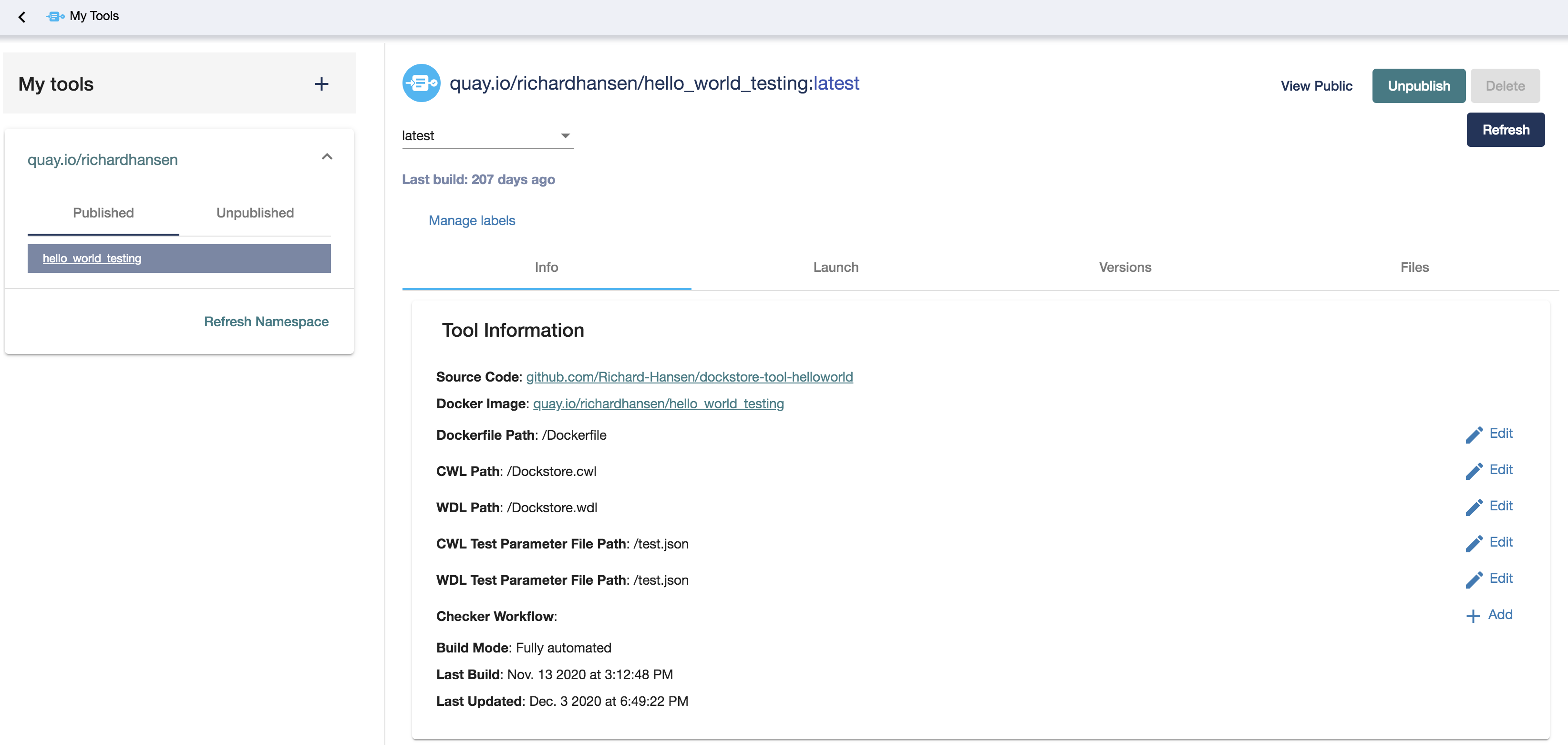
My Tools
The left side menu is a list of all image repositories associated with
the user, grouped lexicographically by namespace. Each tool is named
after the docker location of the associated Docker image, in this
example, quay.io/collaboratory/dockstore-tool-bamstats. Detailed
information and links for each tool are located on the ‘Info’ tab. The
‘Launch’ tab includes commands for launching the tool locally with the
Dockstore CLI. Settings such as the path to the Dockerfile and the
Descriptor files can be modified on a per-tag basis in the ‘Versions’
tab. The Dockerfile, CWL/WDL Descriptor and test parameter files may be
viewed in the ‘Files’ tab, by the Version tag (corresponding to a Git
tag/branch). Finally, ‘Manage labels’ (located above the tabs) allows
you to add/edit keywords that you want to be associated with a workflow
for efficient searching and grouping.
We also look for /test.cwl.json and /test.wdl.json in the git
repositories on quick registration. These are the default test parameter
file locations. Whenever a new version is added, we will check for these
default files. You can also change these after quick registration. They
will be applied to all versions that have not been edited, as well as
any new versions that may appear.
A tool is not visible on the public ‘Tools’ listing unless it is published. To publish a tool, press the ‘Publish’ button in the top-right corner.
For the tutorial, generally, you should hit the “Refresh All” button to make sure Dockstore has examined your latest repositories on Quay. This is how Dockstore picks up new repositories like we did here. (After the tutorial, you can refresh tools individually or by organization to speed things up)
Now select the collaboratory/dockstore-tool-bamstats repository and
click “Publish”. The tool is now listed on Dockstore!
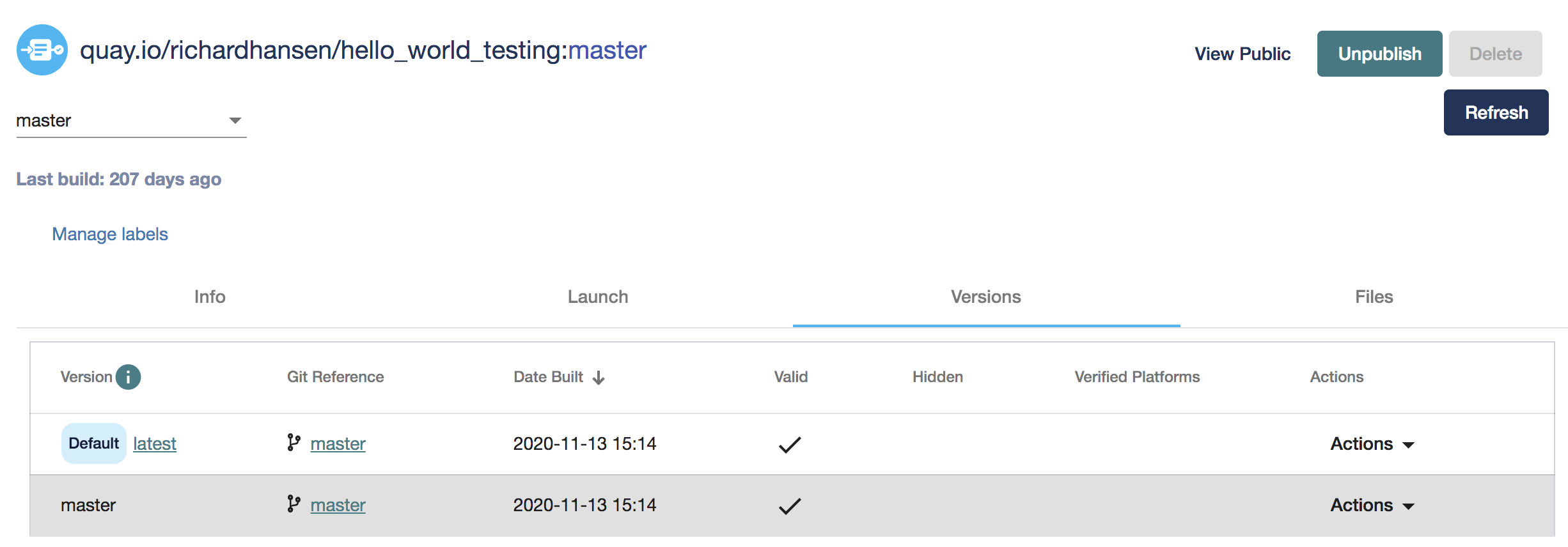
You can also click on the “Versions” tab and should notice 1.25-6 is
present and valid. If any versions are invalid it is likely due to a
path issue to the Dockstore.cwl, Dockerfile, or
Dockstore.wdl (if used) files. In BAMStats I used the default value
of Dockstore.cwl and Dockerfile in the root repo directory so
this was not an issue.
Publish
Next, pick a version of your tool that you wish to present to the world by clicking on the radio selector in the Version column. This will determine which version of your CWL/WDL file will be used to find the author, email, and description in the case that it changes between versions. This also allows you to pre-select a version of your tool to present to users in the “Launch With” section, and the Dockerfile and Descriptor tabs.
Quick Registration of Alternate Tools
Outside of this tutorial, you may wish to re-register a pre-existing tool with a new name. This can occur when you’ve quick registered a tool, but wish to create a new tool with a different descriptor based on the same Docker image when your Docker image supports a number of different commands.
Consider the linked
repository.
If you’ve followed the tutorial, you will have this as a published tool.
But wait, there’s a Dockstore2.cwl in the same repo with a different
command.
To register this, follow the procedure below:
First, make note of the GitHub repository that stores the descriptors for the tool.
Second, hit the plus button on the top left and select ‘Create tool with
descriptor(s) on remote sites’. Ensure that the GitHub
repository and image registry match your previous tool. Note that we
changed the default CWL Descriptor Path to Dockstore2.cwl to
simulate an alternate descriptor for the same Docker image. Last but not
least, change the tool name to distinguish the tool from the intial
tool.
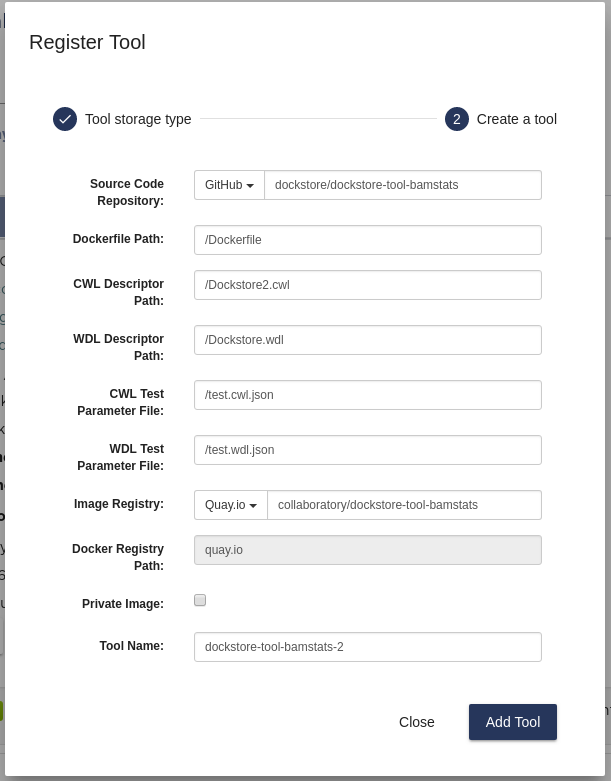
Add alternate tool
After clicking on “Add Tool” you should now see a new “Fully-Automated” tool that shared a GitHub and Quay.io repo with an existing tool. Note that the description and launch-with commands should reflect the new tool and the ID will have an additional part (up from three) identifying the new alternate tool.
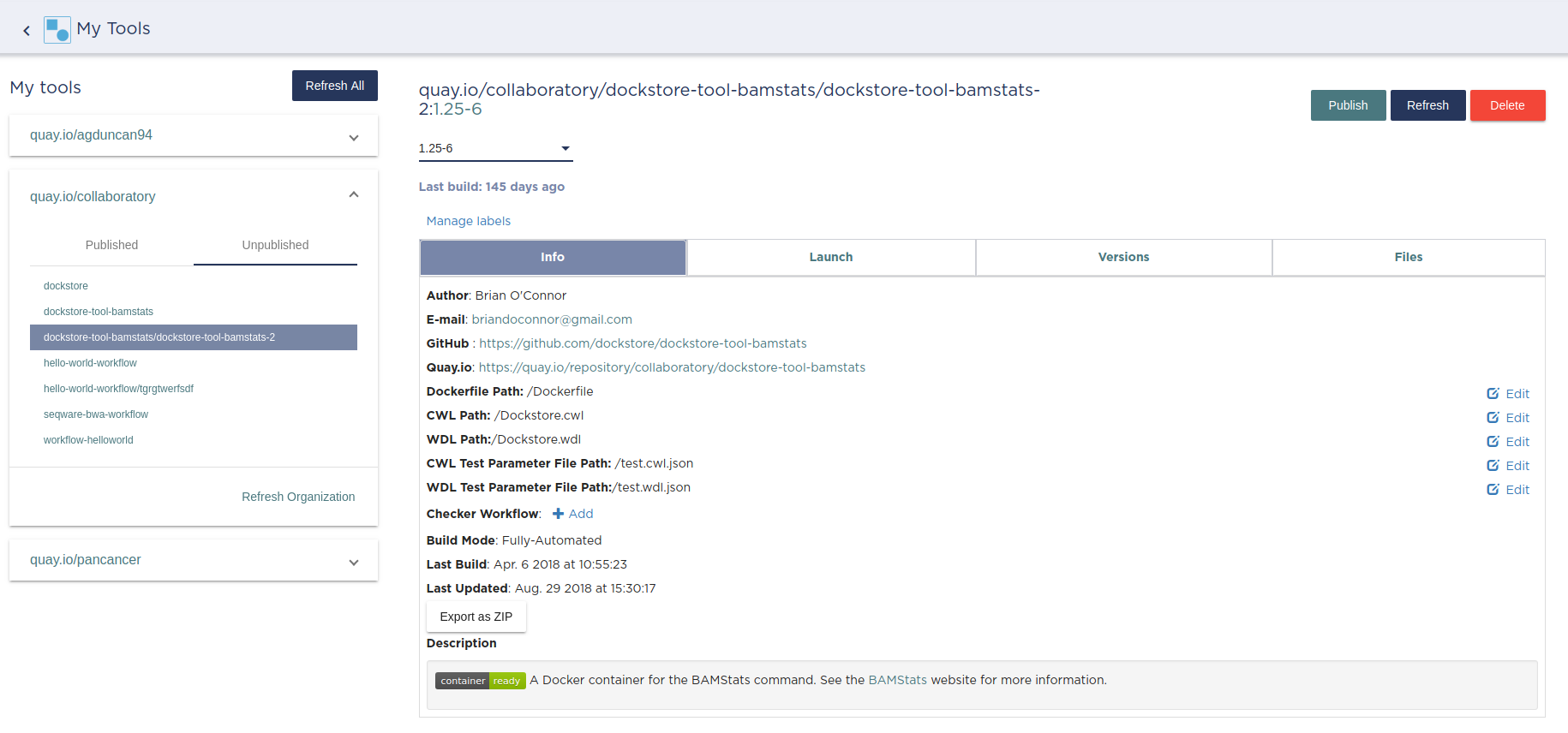
Newly created alternate tool
Manual Registration of Tools
Outside of this tutorial, in certain cases, it is not possible for Dockstore to register every existing tool, especially those with unusual project structures. Most notably, Docker Hub and GitLab images can not be automatically detected by Dockstore. The second possibility is that you have multiple CWL documents in a GitHub repository associated with multiple images. For those cases, it is necessary to manually register their details to Dockstore.
Tools can be registered manually from the ‘My Tools’ page by pressing the plus button at the top left of the page. A modal dialog will appear as below:
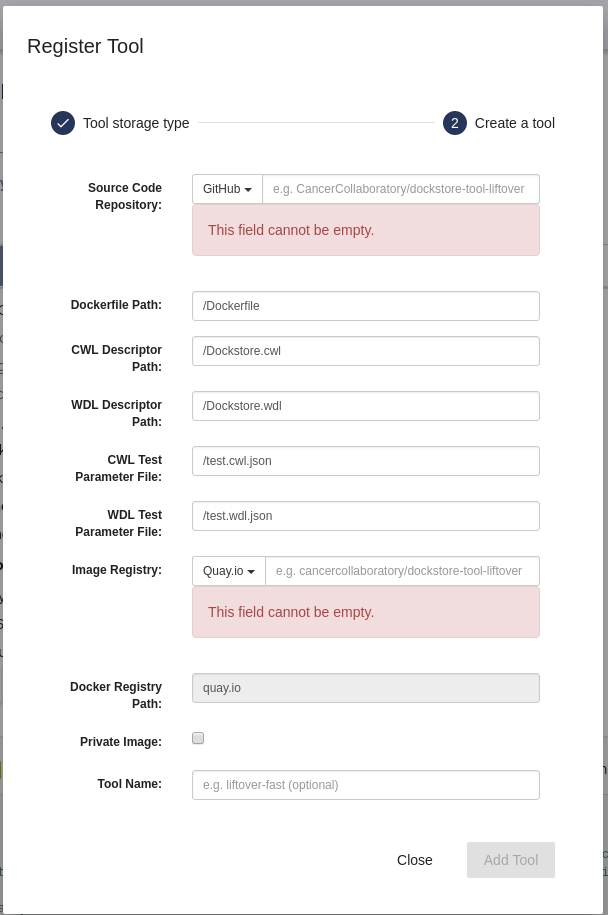
Register Tool Manual
Select ‘Use CWL, WDL or Nextflow from GitHub, BitBucket, etc’ and click next.
The Source Code Repository and Image Registry fields must be filled out,
and they are in the format namespace/name (the two paths may
differ). The Dockerfile Path, CWL/WDL Descriptor Paths, and CWL/WDL Test
Parameter Paths are relative to the root of the Source Code Repository
(and must begin with ‘/’). These will be the default locations to find
their corresponding files, unless specified otherwise in the tags. The
toolname is an optional ‘suffix’ appended to the Dockstore path. It
allows for two repositories to share the same Git and Image Registry
paths; the combination of Docker image registry path and toolname
uniquely distinguishes tools in Dockstore.
If you want to register a private Docker image and manage access, please click the “private” checkbox. You will also be asked for a tool maintainer email. This is the email of the person responsible for giving users access to your tool on external sites. If you do not provide a tool maintainer email, we will use the email found in the tool’s CWL descriptor instead, if provided.
Upon successful submission and registration of the tool, a resynchronization call will be made to fetch all available data from the given sources. If the image registry is Quay.io, existing version tags will be prepopulated for the Dockstore record.

Versions Grid
Press the ‘Add Tag’ button to begin creating tags for the different versions of the image. The tag creation modal will appear:
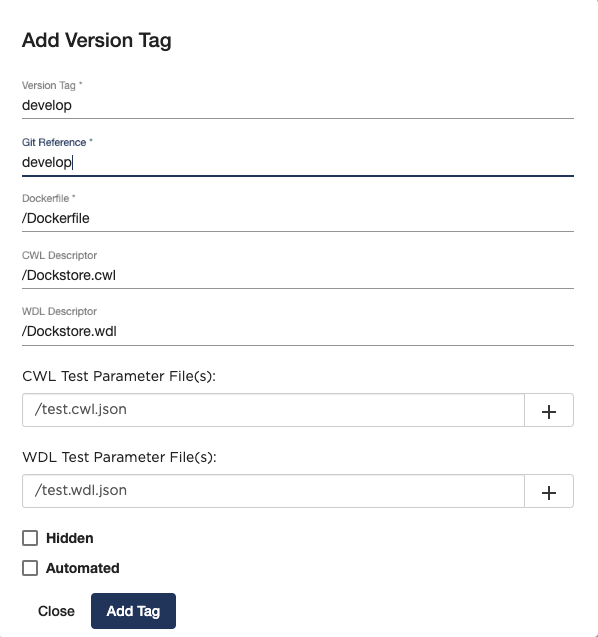
Edit Version Tag Dialogue
The fields in the form should correspond to the actual values on
GitHub/Bitbucket/GitLab and Quay.io/Docker Hub in order for the
information to be useful to other users. Selecting Hidden will
prevent the tag from appearing in the public listing of tags for the
image.
CLI Client
The dockstore command line can be used as an alternative to the GUI
and has a couple modes.
$ dockstore

HELP FOR DOCKSTORE
------------------
See https://www.dockstore.org for more information

Usage: dockstore [mode] [flags] [command] [command parameters]

Modes:
   tool                Puts dockstore into tool mode.
   workflow            Puts dockstore into workflow mode.
   checker             Puts dockstore into checker mode.
   plugin              Configure and debug plugins.
   deps                Print tool/workflow runner dependencies.

------------------

Flags:
  --help               Print help information
                       Default: false
  --debug              Print debugging information
                       Default: false
  --version            Print dockstore's version
                       Default: false
  --server-metadata    Print metdata describing the dockstore webservice
                       Default: false
  --upgrade            Upgrades to the latest stable release of Dockstore
                       Default: false
  --upgrade-stable     Force upgrade to the latest stable release of Dockstore
                       Default: false
  --upgrade-unstable   Force upgrade to the latest unstable release of Dockstore
                       Default: false
  --config <file>      Override config file
                       Default: ~/.dockstore/config
  --script             Will not check Github for newer versions of Dockstore
                       Default: false
  --clean-cache        Delete the Dockstore launcher cache to save space

------------------
First, we will work in tool mode (dockstore tool). We recommend you
first dockstore tool refresh to ensure the latest GitHub, Bitbucket,
GitLab and Quay.io information is indexed properly.
$ dockstore tool

HELP FOR DOCKSTORE
------------------
See https://www.dockstore.org for more information

Usage: dockstore tool [flags] [command] [command parameters]

Commands:

  list             :  lists all the Tools published by the user

  search           :  allows a user to search for all published Tools that match the criteria

  publish          :  publish/unpublish a Tool in the dockstore

  info             :  print detailed information about a particular published Tool

  cwl              :  returns the Common Workflow Language Tool definition for this entry
                      which enables integration with Global Alliance compliant systems

  wdl              :  returns the Workflow Descriptor Langauge definition for this Docker image.

  refresh          :  updates your list of Tools stored on Dockstore or an individual Tool

  label            :  updates labels for an individual Tool

  test_parameter   :  updates test parameter files for a version of a Tool

  convert          :  utilities that allow you to convert file types

  launch           :  launch Tools (locally)

  download         :  download Tools to the local directory

  version_tag      :  updates version tags for an individual tool

  update_tool      :  updates certain fields of a tool

  manual_publish   :  registers a Docker Hub (or manual Quay) tool in the dockstore and then attempt to publish

------------------

Flags:
  --help               Print help information
                       Default: false
  --debug              Print debugging information
                       Default: false
  --config <file>      Override config file
                       Default: ~/.dockstore/config
  --script             For usage with scripts. Will not check for updates to Dockstore CLI.
                       Default: false


------------------
You can then use dockstore tool publish to see the list of available
Docker images you can register with Dockstore. This is for you to
publish tools that are auto-detected from Quay.io. The key is that
Docker images you wish to (quick) publish have the following qualities:
- Public
- At least one valid tag. In order to be valid, a tag has to:
- be automated from a GitHub, Bitbucket, or GitLab reference
- have the reference be linked to the
Dockerfile - have the reference be linked a corresponding
Dockstore.cwl
$ dockstore tool publish
YOUR AVAILABLE CONTAINERS
------------------
        NAME                                                         DESCRIPTION                                          Git Repo                                                                   On Dockstore?   Descriptor      Automated
        quay.io/cancercollaboratory/dockstore-tool-samtools-index    Prints alignments in the specified input alignm...   git@github.com:CancerCollaboratory/dockstore-tool-samtools-index.git       No
        Yes             Yes
        quay.io/cancercollaboratory/dockstore-tool-samtools-rmdup    Remove potential PCR duplicates: if multiple re...   git@github.com:CancerCollaboratory/dockstore-tool-samtools-rmdup.git       No
        Yes             Yes
        quay.io/cancercollaboratory/dockstore-tool-samtools-sort     Sort alignments by leftmost coordinates, or by ...   git@github.com:CancerCollaboratory/dockstore-tool-samtools-sort.git        No
        Yes             Yes
        quay.io/cancercollaboratory/dockstore-tool-samtools-view     Prints alignments in the specified input alignm...   git@github.com:CancerCollaboratory/dockstore-tool-samtools-view.git        No
        Yes             Yes
        quay.io/cancercollaboratory/dockstore-tool-snpeff            Annotates and predicts the effects of variants ...   git@github.com:CancerCollaboratory/dockstore-tool-snpeff.git               No
        Yes             Yes
$ dockstore tool publish --entry quay.io/cancercollaboratory/dockstore-tool-snpeff
Successfully published  quay.io/cancercollaboratory/dockstore-tool-snpeff
You can see in the above, the tool (identified with
quay.io/cancercollaboratory/dockstore-tool-snpeff in Dockstore and
Quay.io) was successfully registered and can be seen by anyone on the
Dockstore site.
The dockstore tool manual_publish command can be used to manually
register a tool on Docker Hub. Its usage is outlined in the
publish_manual help menu. This will allow you to register entries that
do not follow the qualities above (non-automated builds and Docker Hub
images).
$ dockstore tool manual_publish --help

HELP FOR DOCKSTORE
------------------
See https://www.dockstore.org for more information

Usage: dockstore tool manual_publish --help
       dockstore tool manual_publish [parameters]

Description:
  Manually register an tool in the dockstore. Currently this is used to register entries for images on Docker Hub.

Required parameters:
  --name <name>                Name for the docker container
  --namespace <namespace>      Organization for the docker container
  --git-url <url>              Reference to the git repo holding descriptor(s) and Dockerfile ex: "git@github.com:user/test1.git"
  --git-reference <reference>  Reference to git branch or tag where the CWL and Dockerfile is checked-in

Optional parameters:
  --dockerfile-path <file>                                 Path for the dockerfile, defaults to /Dockerfile
  --cwl-path <file>                                        Path for the CWL document, defaults to /Dockstore.cwl
  --wdl-path <file>                                        Path for the WDL document, defaults to /Dockstore.wdl
  --test-cwl-path <test-cwl-path>                          Path to default test cwl location, defaults to /test.cwl.json
  --test-wdl-path <test-wdl-path>                          Path to default test wdl location, defaults to /test.wdl.json
  --toolname <toolname>                                    Name of the tool, can be omitted, defaults to null
  --registry <registry>                                    Docker registry, can be omitted, defaults to DOCKER_HUB. Run command with no parameters to see available registries.
  --version-name <version>                                 Version tag name for Dockerhub containers only, defaults to latest.
  --private <true/false>                                   Is the tool private or not, defaults to false.
  --tool-maintainer-email <tool maintainer email>          The contact email for the tool maintainer. Required for private repositories.
  --custom-docker-path <custom docker path>                Custom Docker registry path (ex. registry.hub.docker.com). Only available for certain registries.


------------------
Additional Information on Build Modes
Fully-Automated (Quay.io Only)
How to create it:
Create by using the “Refresh All” button. This will scan through your Quay.io repositories and automatically register the tool on Dockstore.
Requirements:
- Using a Quay.io registry with Quay.io linked to Dockstore.
Benefits:
This build mode automatically adds versions to your tool with Quay tags and their Git references by determining which tags on git were responsible for triggering builds on Quay.
Limitations:
- Unable to easily deregister the tool
- Unable to manually add versions
- Cannot uniquely name the tool
- Currently only works with Quay.io image registry
When to use:
Recommended when you are using a Quay.io registry, want a quick and easy way to register the tool, and want to avoid manually adding new versions to the tool. Generally recommended for most tools.
Note
If the Quay.io repository has at least one build that was not triggered by a git repository, then the tool will have the build mode Partially-Automated. The tool will still have the same benefits as a Fully-Automated tool.
Manual
How to create it:
- Click Plus button on the top left of the screen
Requirements:
- Registry that has at least one tag
- Token to the corresponding registry (if using Quay.io)
Limitations:
- Have to manually add the tool and also manually add each version (refresh will not work)
When to use:
Recommended when you’re not using Quay.io, someone else has the same tool name already and you want your own tool instead, or if you are not using build triggers.
Converting Between Build Modes (Quay.io Only)
Manual -> Fully-Automated:
- Add a git build trigger to the Quay.io repository
- Refresh the manual tool
Fully-Automated -> Manual:
- Delete tool
- Create a new manual tool (will have to recreate the Quay.io repository)
Note
When manually adding a Quay.io tool, if there exists a Fully-Automated tool on Dockstore with the same Docker image and Git repository as the manual tool, then the manual tool will be converted to Fully-Automated.
Sharing the Tool
This is the simple part. Now that we’ve successfully registered the tool on Dockstore you can just send around a link, for example to the BAMStat tool I just registered:
https://dockstore.org/containers/quay.io/briandoconnor/dockstore-tool-bamstats
This will link to the default version if set, and if not then the most recent version.
You can also share a specific version of a tool by appending
:version to the end of the tool path. Again, using the previous
example we can link to version 1.25-11:
https://dockstore.org/containers/quay.io/briandoconnor/dockstore-tool-bamstats:1.25-11
For Terra Users : You have the ability to share hosted workflows through Dockstore. This allows for you to share workflows wth other users who have used their Google account to register on Terra. Learn more at Workflow Sharing.
Find Other Tools
You can find tools on the Dockstore website or also through the
dockstore tool search command line option.