Note
This tutorial is a continuation of Getting Started with Dockstore Tools. Please complete the tutorial prior to doing this one.
Workflows
Tutorial Goals
Learn the differences between tools and workflows across Descriptor Languages
Discover how to register a workflow on Dockstore
Publish your workflow
This tutorial walks through the process of registering and sharing more complex workflows which are comprised of multiple tools, strung together in some sort of order (often a directed acyclic graph (DAG)). Workflows also differ from tools since they are not required to define their own environment, instead a workflow engine like Arvados or Cromwell, or an infrastructure like Galaxy will provide the ability to execute a CWL, WDL, or Galaxy workflow respectively.
This tutorial does not go through the creation of a workflow and its registration to GitHub, Bitbucket or GitLab. It assumes that you already have a repository which contains a workflow and are now trying to register it in Dockstore.
Comparison of Tools and Workflows Across Descriptor Languages
When Dockstore was created, CWL was the first descriptor language we supported. It had a very clear distinction between a Tool and a Workflow. Descriptor languages like WDL and Nextflow are less clear about this distinction so we briefly describe our working definitions below:
Language |
Tool |
Workflow |
|---|---|---|
CWL |
|
|
WDL |
|
|
Nextflow |
|
|
Galaxy |
|
|
* There are tools that make up Galaxy workflows from the Galaxy toolbox or ToolShed. Dockstore does not support registration of these tools.
Register Your Workflow in Dockstore
There are a variety of ways to get your workflows into Dockstore. Users can either use GitHub App registration or traditional registration. GitHub App registration is the recommended way to register for all new workflows on Dockstore using GitHub. The traditional registration is the legacy registration process which is less automated, and used for Bitbucket and GitLab.
Note
To register content on Dockstore, you must have an account on Dockstore and link the necessary third-party accounts. Once this is done you can register workflows from the My Workflows page.
Naming Workflows on Dockstore
Note
Workflow paths are unique, descriptive identifiers for a workflow.
Each workflow on Dockstore has a unique identifier in the form of a path. This path is based on the Git repository that the workflow comes from. There are four components to a path, but only three are required. In most cases these three required components are all you need.
First we will look at the required components. This is the Git registry, the organization, and the repository. They are joined together by forward slashes, which can be seen below:
Git Registry/Organization/Repository
Ex. If I had a GitHub repository called BAMstats that existed in the OICR organization, the path of the workflow created from that repository would be the following:
github.com/OICR/BAMstats
Why not simply use a number to identify the workflow? With a path like that shown above, users can quickly understand the purpose of a workflow along with where it came from.
The final optional component for the workflow path is the workflow name. This is a user defined string that will be appended to the end of the required workflow path. It is useful in two situations:
The name of the repository doesn’t represent the workflow, or
The repository contains multiple workflows
Using the previous example, we could set the workflow name to coverage. Our path would now be:
github.com/OICR/BAMstats/coverage
If we set the workflow name, we must include it in our path when referencing the workflow.
Tip
Quick register does not support workflow names. Please use an alternative registration process if you would like to register a workflow with a workflow name.
Registration With GitHub Apps
This is the newest way of getting content onto Dockstore and is by far the most automated. Using GitHub Apps, Dockstore can react to changes on GitHub as they are made, keeping Dockstore synced with GitHub automatically.
To install our GitHub App on either a repository or organization,
navigate to the /my-workflows page and click add workflow. Follow the steps for GitHub Apps and
you will be redirected to GitHub where you can select which repositories to install the Dockstore
GitHub app on. The process is shown in the following images.
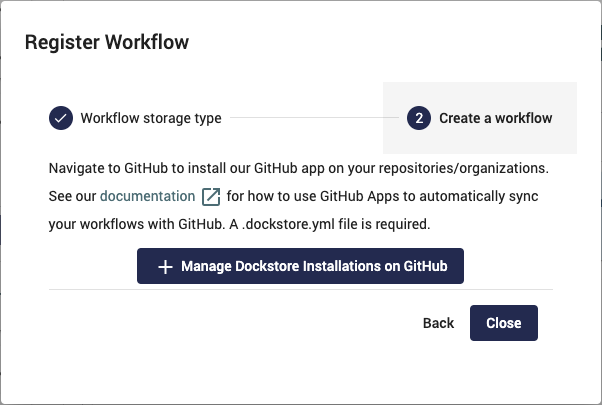
Select Register Using GitHub Apps to get a link to our installation page
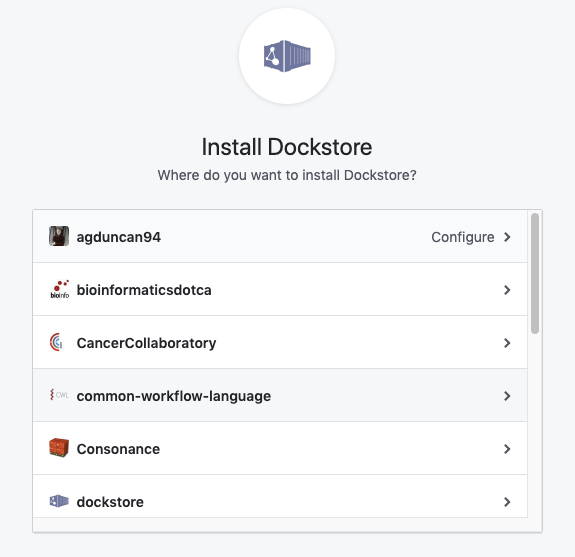
Select an organization
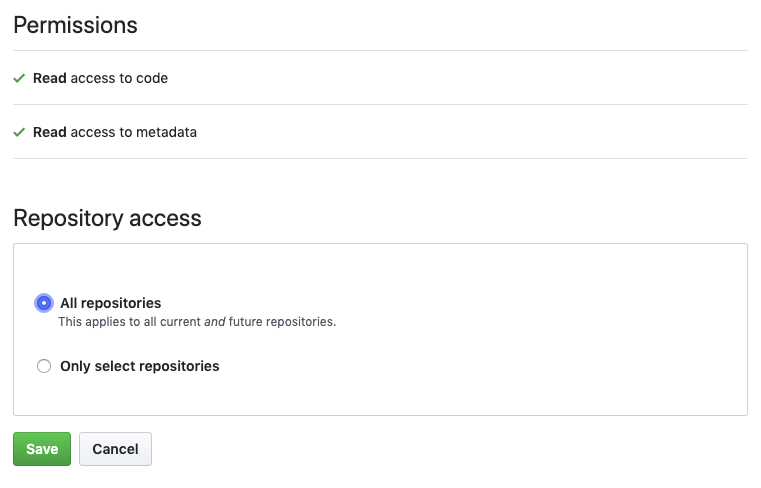
Install our GitHub App on either all repositories in an organization or on specific repositories
Once you’ve installed our GitHub app on a repository or organization, you’ll need to add a /.dockstore.yml file to
the root directory of a branch of the repository that contains your workflow. This file contains information like
workflow path, test parameter file, workflow name, etc. When a push is made on GitHub to a branch
with a /.dockstore.yml, Dockstore will add that branch to the corresponding workflow on Dockstore. If the
workflow doesn’t already exist on Dockstore, one will be created.
Below is a simple example of a /.dockstore.yml file
for an alignment workflow to show you how easy it is to use. If you are interested in using this method, please see the
complete documentation at the Dockstore GitHub Apps page. All paths in the file must be absolute.
version: 1.2
workflows:
   - subclass: CWL
     primaryDescriptorPath: /aligner.cwl
     testParameterFiles:
     - /test/aligner.cwl.json
If you had our GitHub App installed on the repository myorg/alignments and then add the above /.dockstore.yml to the develop branch,
the following would occur.
A CWL workflow with the ID
github.com/myorg/alignmentswill be created on DockstoreThe version develop is added to the workflow
github.com/myorg/alignmentsThe version has the primary descriptor file set to
/aligner.cwlThe version has one test parameter file:
/test/aligner.cwl.json
Now that your workflow has been added, any time there is a push to a branch on GitHub for this repository that has a /.dockstore.yml,
it is automatically updated on Dockstore! Anytime there is a deletion of a branch on GitHub that has a /.dockstore.yml, the version is
removed from Dockstore.
Tip
Since the workflows field is an array, this file supports multiple workflows on Dockstore stemming from the same repository on GitHub. This is useful if you store a lot of your workflows in the same GitHub repository. This is achieved by setting a different value for the name field for each entry (corresponding to the workflow name of the entry).
Important
The GitHub user who first adds a workflow onto Dockstore must correspond to a user on Dockstore.
See also
Automatic Syncing with GitHub Apps and .dockstore.yml - details on writing a .dockstore.yml file
Migrating Your Existing Workflows - a tutorial on converting already registered workflows
Troubleshooting and FAQ - tips on resolving Dockstore Github App issues.
Traditional Registration
When using Bitbucket and GitLab for you workflows, use the traditional registration. There are two types of traditional registration: quick registration and manual registration.
There are some ways to make the traditional registration process more seamless.
For your primary workflow descriptor, use the file suffixes
cwl,wdl,config(for Nextflow), orga(for Galaxy) depending on the descriptor language at the root of your repositoryFor your test parameter files, use the file suffix
jsonat the root of your repositoryThere should be one workflow per repository
By default, Dockstore will search the root of your repository for workflow related files. Following the above tips will help streamline the registration process, though you can still register workflows with non-standard format by using manual registration.
Quick Register
Quick register provides a flow that lets you browse the repositories you have access to and quickly create workflows. You can access quick register by clicking the plus button on the My Workflows page. You’ll see a modal that looks like the following.
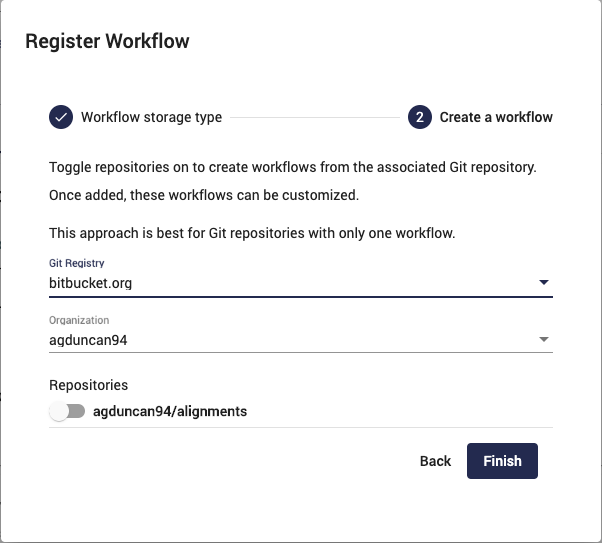
Use dropdowns to browse for repositories and use sliders to add as workflows
Once you’ve selected a Git registry and organization, you can see a list of all available repositories that you can add to Dockstore. There are three states the sliders can be in.
Off - There is no matching workflow on Dockstore. One can be created.
On - This repository already exists on Dockstore and can be deleted.
Disabled - This repository exists on Dockstore and cannot be deleted.
If sliders are in the off state then you can turn them on to quickly register a workflow for the repository. Once registered you can customize the workflow path, test parameter path, descriptor language, etc. The workflow will then need to be refreshed to get it synced up with Bitbucket/GitLab.
Note
Some users have multiple workflows within one Git repository, however each workflow entry on Dockstore only contains a single workflow. This is a problem as the Git path is used to uniquely identify a Dockstore workflow. The solution is to use manual register, defined below, which allows you to append a workflow name to the path.
Manual Registration of Workflows
In certain cases, you may wish to register workflows in a different source code structure, especially when working with complex project structures. For example, if you want to register two workflows from the same repository, you can use custom workflow names. This can be seen in the form below.
You can access manual register by clicking the plus button on the My Workflows page and selecting the custom registration.
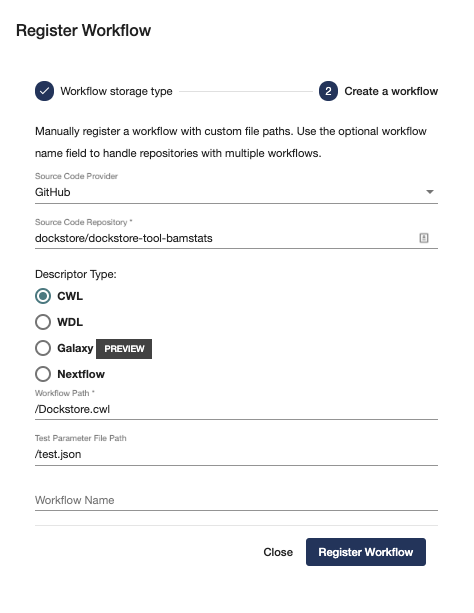
Fill out form to register a workflow
Upon successful submission of the workflow, a synchronization call will be made to fetch all available data from the given sources. This can be verified by going to the ‘Versions’ or ‘Files’ tab to see what content has been found.
Next Steps
You may not want to store your files directly with a service like GitHub. Perhaps you want your descriptor files to not be public. The solution is to use Hosted Tools and Workflows.